
Install and set up
What you need, how to install Yharnam Together, and how other players reach a local host.
Before you start
- Your own Bloodborne for PS4 at version 1.09: the game folder with the 1.09 update, or the PS4
.pkgfiles. Nothing from the game is included. - Windows 10 (1903 or later) or Windows 11, 64-bit.
- A graphics card with Vulkan 1.3 and a current driver.
- Everyone, the host included, on the same release. The server turns away a different build.
Install
- Download the setup
.exefrom the download page or GitHub releases and run it. It installs for your Windows user. For the portable build, extract the ZIP and open BLauncher.exe. Already installed? Use Update or Check for updates next to PLAY. - Open Yharnam Together. The launcher opens on Home, with the latest news.
- In Co-op setup, select Local server for a self-hosted game, choose your Bloodborne folder, and enter the host’s address. The host starts the server before everyone presses PLAY.
Every screen of the setup and every launcher page, with what each is for, is in Setup and the launcher.
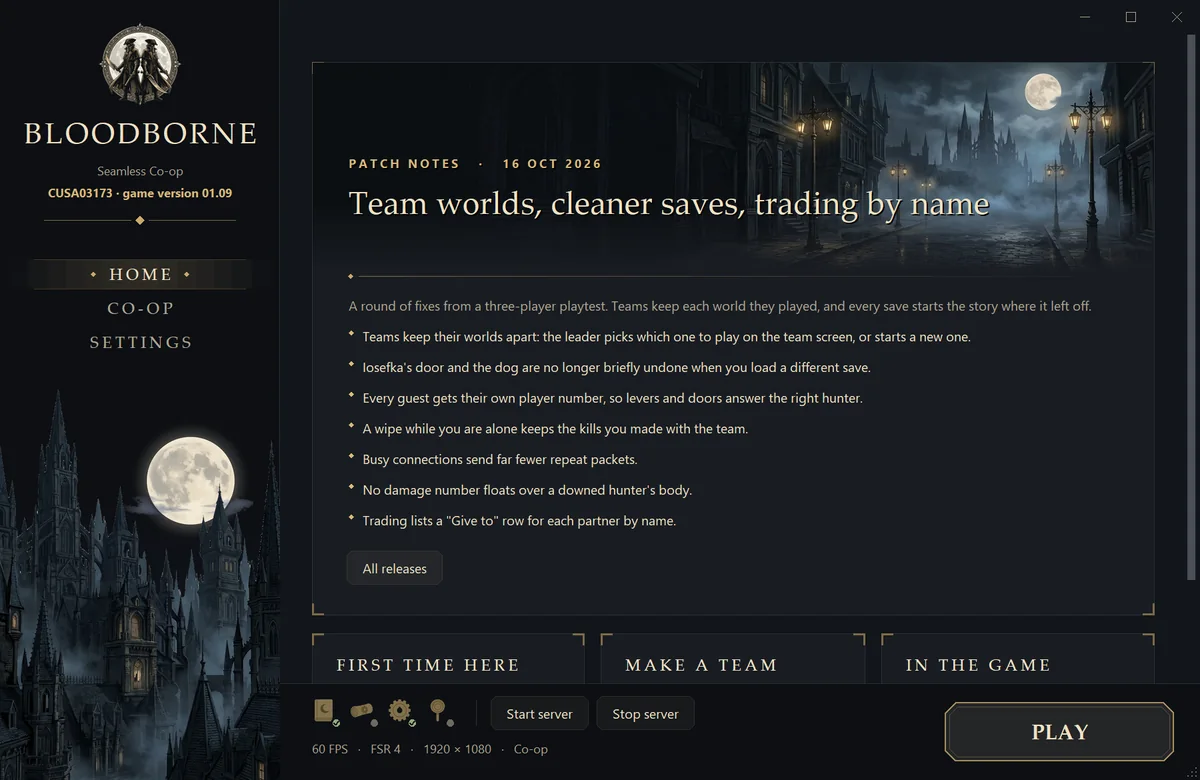
The Co-op page
One page for everyone, host or not. You fill it in once.
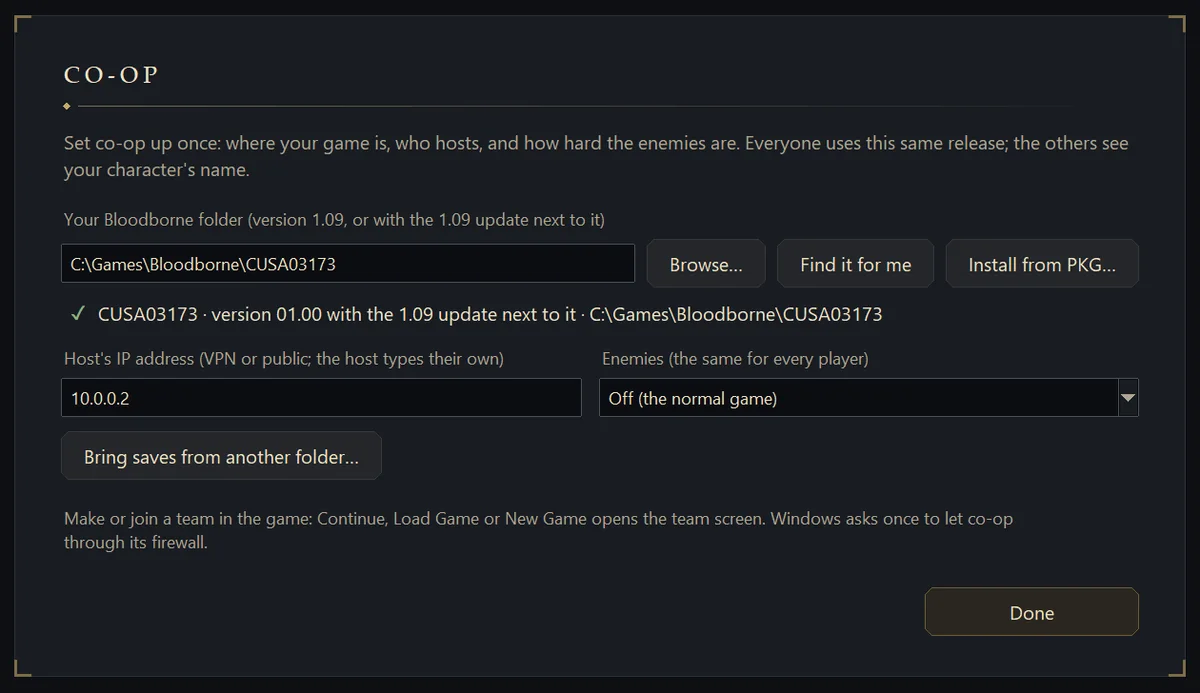
- Your Bloodborne folder
- The game, at 1.09 or with the 1.09 update next to it. Browse… picks the folder; Find it for me searches the usual places and then every drive; Install from PKG… installs the game and the update from your
.pkgfiles. The line under it says which version it found, or what is missing. - Host's IP address
- Where the host's PC can be reached: its VPN address, or its public IP. The host types their own address too; that is how the launcher knows this PC is the host.
- Team rules
- In v1.5.0 the leader sets team rules in the in-game team settings, not the launcher. Custom lets the leader set enemy health, damage and poise; friendly fire is off by default.
- Bring saves from another folder…
- Opens a folder picker and copies your characters over from a PS4 save folder, a shadPS4
userfolder or an older co-op install. - Done
- Greyed out until the page is complete. The line beside it says what is still needed.
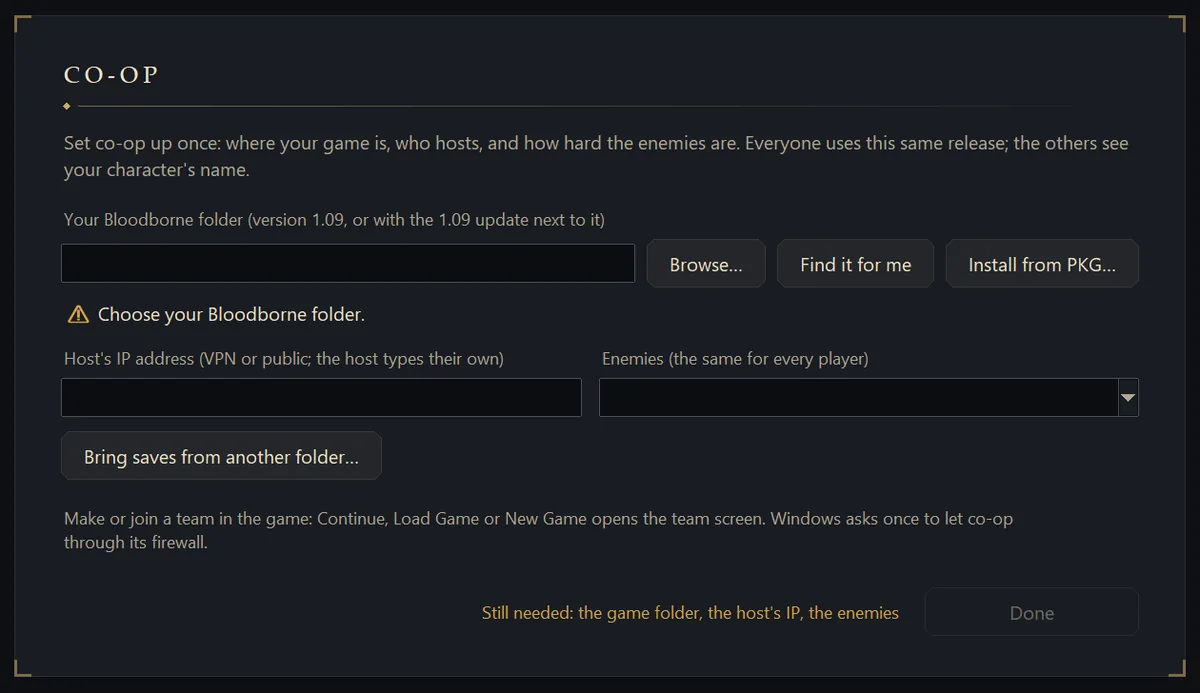
Local hosting and public-server sign-in are separate. For a compatible public server that requires an account, use the launcher’s sign-in flow. Website account creation is not available here.
Press PLAY
- The host presses Start server (bottom left) first; the line beside it says Running. If the server ever stops, it restarts by itself. Stop server stops it.
- The first time, Windows asks once to let co-op through its firewall. Say yes: the launcher adds the rules for you.
- The first start prepares a game folder that links to your game. Nothing is copied.
- The game starts. Making a team happens in the game: see Playing together.


- The four icons
- Quick checks of your setup. A green check means ready, a grey dot means it is not set yet.
- Start server, Stop server
- The host starts the co-op server here before PLAY (PLAY does not start it) and stops it when everyone is done. The words beside them say whether it is running.
- The line under them
- Your frame rate, upscaler, resolution and mode, or the last thing the launcher did.
If the game crashes, the next PLAY sends the crash report and the logs to the host's server, so the host can pass them on.
Reach the host
The host's PC is the server, so every other player has to reach it. Either:
- join the same VPN, such as Radmin VPN, Tailscale or ZeroTier, and use the host's VPN address (the easy way), or
- forward these ports on the host's router and use its public IP: TCP 31315 and 20443, and UDP 31314.
Without a VPN, Start server asks the host's router to open those ports by itself (UPnP) and shows the host's internet address: the others type that address as Host's IP address, and the host keeps their own PC's address there. It needs UPnP turned on in the router, and it can't work when the internet provider gives the router no address of its own (carrier-grade NAT, common on mobile internet); the launcher says so, and then a VPN is the way. Stop server closes the ports again.
All co-op traffic goes through UDP 31314. The games never talk to each other directly.
Never set up a VPN before? Play over Radmin VPN walks through it with pictures.
Graphics and frame rate
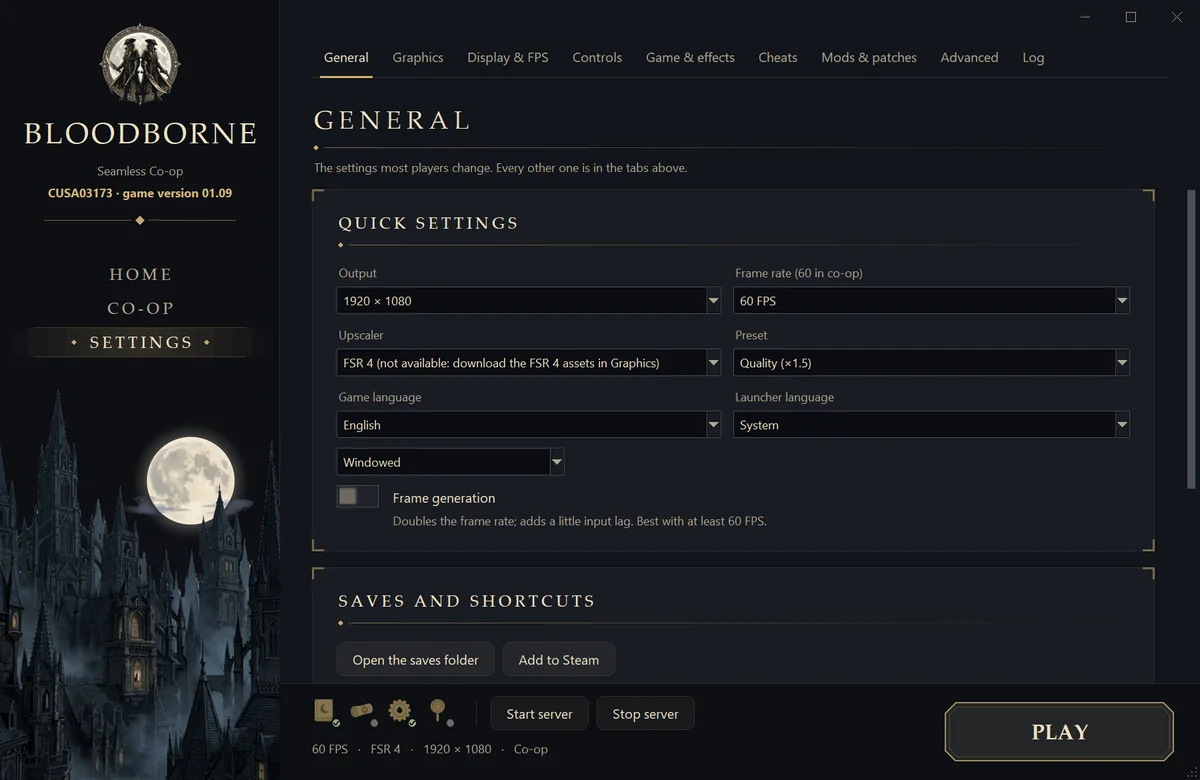
Settings holds the port's own options. General has the ones most players change: output resolution, upscaler and preset, frame generation (shown only with Experimental features enabled), languages and window mode. The tabs above it go further: graphics, display and FPS, controls, mods and the log. v1.5.0 fixes the 30 FPS selection being overridden. Co-op runs at 60 FPS by default: the game sends some of its updates once per frame. Picking Unlocked (up to 120 FPS) or 90 FPS as the frame rate is still in testing; the launcher warns when you do, and those updates keep the 60 FPS pace.
 When something goes wrong
- ✗ co-op needs 1.09
- The launcher found the game without the update. Put the update folder next to the game, or install both from the
.pkgfiles. - Co-op could not start
- Usually the folder or the host's IP is empty or wrong. On the host, check that nothing else uses the ports above.
- Nobody can join
- The others can't reach the host. Check that everyone is on the same VPN, or that the ports are forwarded, and that the host allowed the firewall prompt. For Radmin VPN, see its checklist.
- A crash
- Report it on GitHub issues with the crash report and say which release every player was on.